Upload Project Documentation to GitLab
GitLab is the repository for your project documents and code. Each milestone has its own folder under documentation in your personal repository. You submit a milestone by uploading your document to that folder.
Step 1: Log in to GitLab
- Open https://git.insight.gsu.edu in your browser.
- Sign in with your university credentials.
- Open your personal project repository, EMBA8160 Your Name.
The video below shows the login steps. It was recorded for a different class, but the steps are the same.
Step 2: Navigate to the Documentation Folder
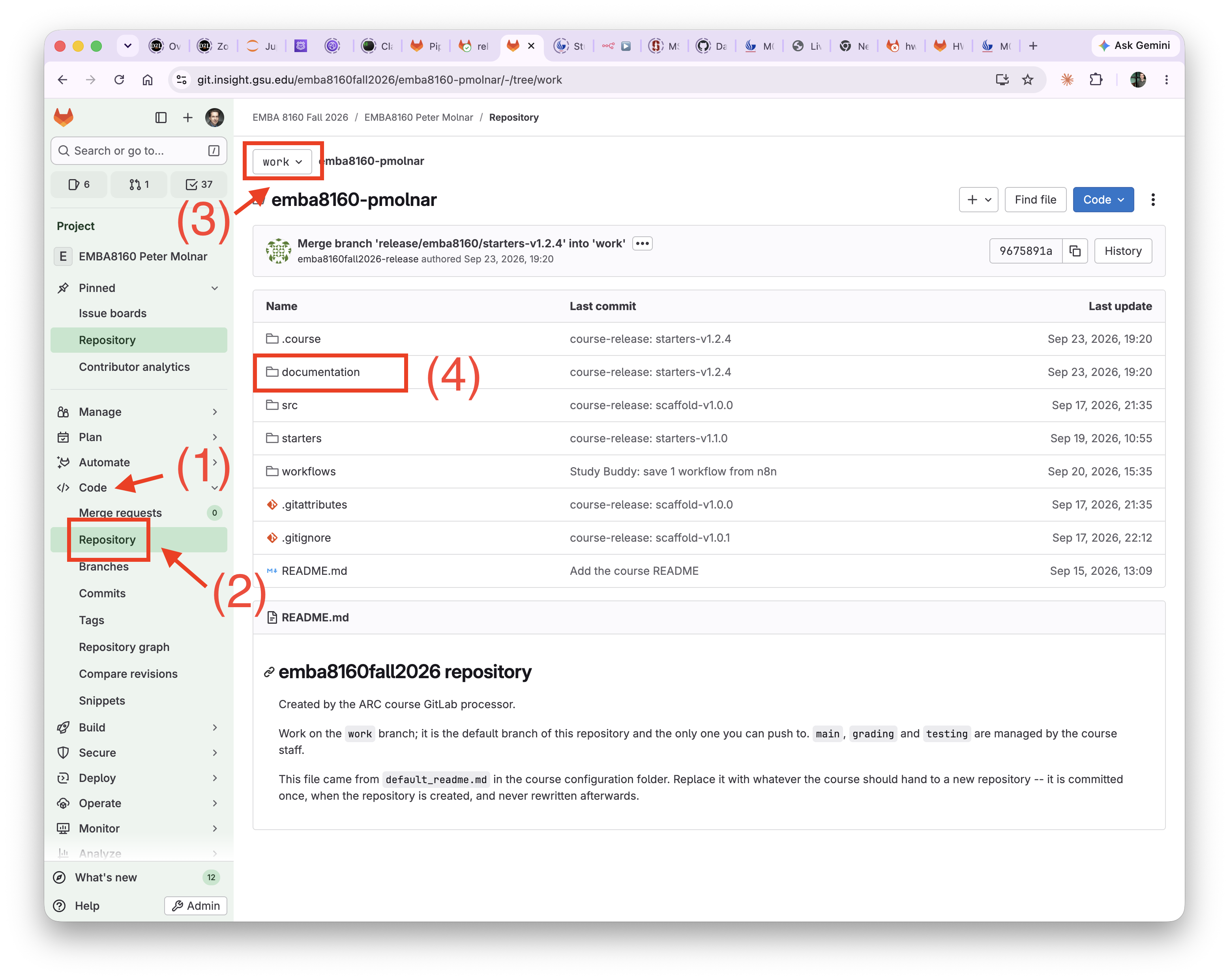
The numbers below match the annotations in the screenshot.
- In the left sidebar, expand Code.
- Click Repository.
- Check that the branch selector at the top shows work. This is the only branch you can upload to. If it shows another branch, click it and select
work. - Click the documentation folder.
Step 3: Upload Your Document
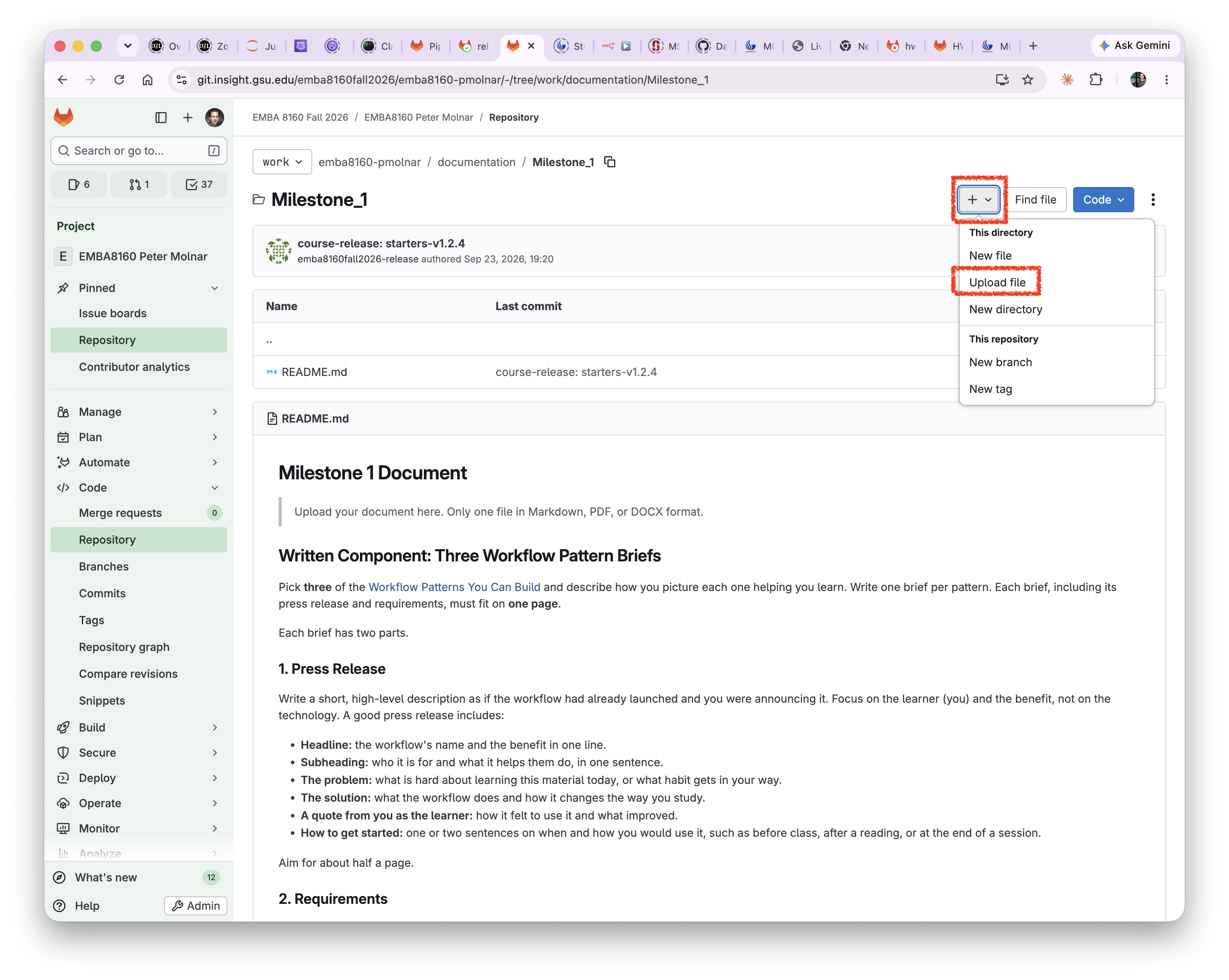
- Open the folder for the milestone you are submitting, for example Milestone_1. The folder’s README repeats the milestone instructions.
- Click the + button next to Find file.
- Under This directory, select Upload file.
- Drag your document into the upload dialog, or click to browse for it.
- Optionally, change the Commit message, for example
Submit Milestone 1. - Make sure the target branch is work, then click Upload file.
After the upload, your file appears in the milestone folder. Click it to check that it is the right file.
Upload only one document per milestone. To submit a revised version, open your existing file and click Replace instead of uploading a second file. If you uploaded the wrong file, open it and click Delete, then upload the correct one.
File Formats for Documents
You can submit your document as Markdown, PDF, or Word (DOCX). All three are accepted, but they work differently in GitLab.
Markdown (.md) | PDF (.pdf) | Word (.docx) | |
|---|---|---|---|
| Recommendation | Preferred | OK | Accepted |
| View in GitLab | Yes, rendered | Yes, in most browsers | No, must download |
| Track changes between versions | Yes, line by line | No | No |
| File size | Smallest | Small | Larger |
Markdown (preferred)
Markdown is plain text with simple formatting marks, such as # for headings and **bold** for bold text. It is the best fit for Git:
- GitLab displays Markdown as a formatted page, so reviewers can read it directly in the web interface.
- Git tracks changes line by line, so you and your reviewers can see exactly what changed between versions.
- Files are small and can be edited in any text editor, or directly in GitLab.
GitLab supports some extras, such as tables, task lists, and diagrams. See the GitLab Flavored Markdown documentation for details.
PDF (OK)
PDF is a good choice if you write in another tool and want your layout preserved.
- Most browsers can display PDFs, so reviewers can usually open them without downloading.
- PDFs are readable on almost any system and are usually smaller than DOCX files.
- Git cannot see what changed inside a PDF. Each new version is stored as a complete copy, and reviewers cannot compare versions.
Most word processors, including Microsoft Word and Google Docs, can export to PDF.
Word DOCX (accepted, but inconvenient)
DOCX files are accepted, but they are the least convenient format for review.
- GitLab cannot display DOCX files. Reviewers must download the file and open it in Microsoft Word or a compatible app.
- Like PDF, Git cannot track changes inside a DOCX file, and each version is stored as a full copy.
- DOCX files are usually larger than the same document as a PDF.
If you write in Word, consider exporting to PDF before uploading.